
How to convert PDF to Excel
pdf2excel.com extracts tables from a PDF and rebuilds them as a spreadsheet (.xlsx) with real cells you can sort, filter, and use in formulas. Useful for bank statements, invoices, financial reports, and any tabular data trapped in a PDF.
Step 1: Upload
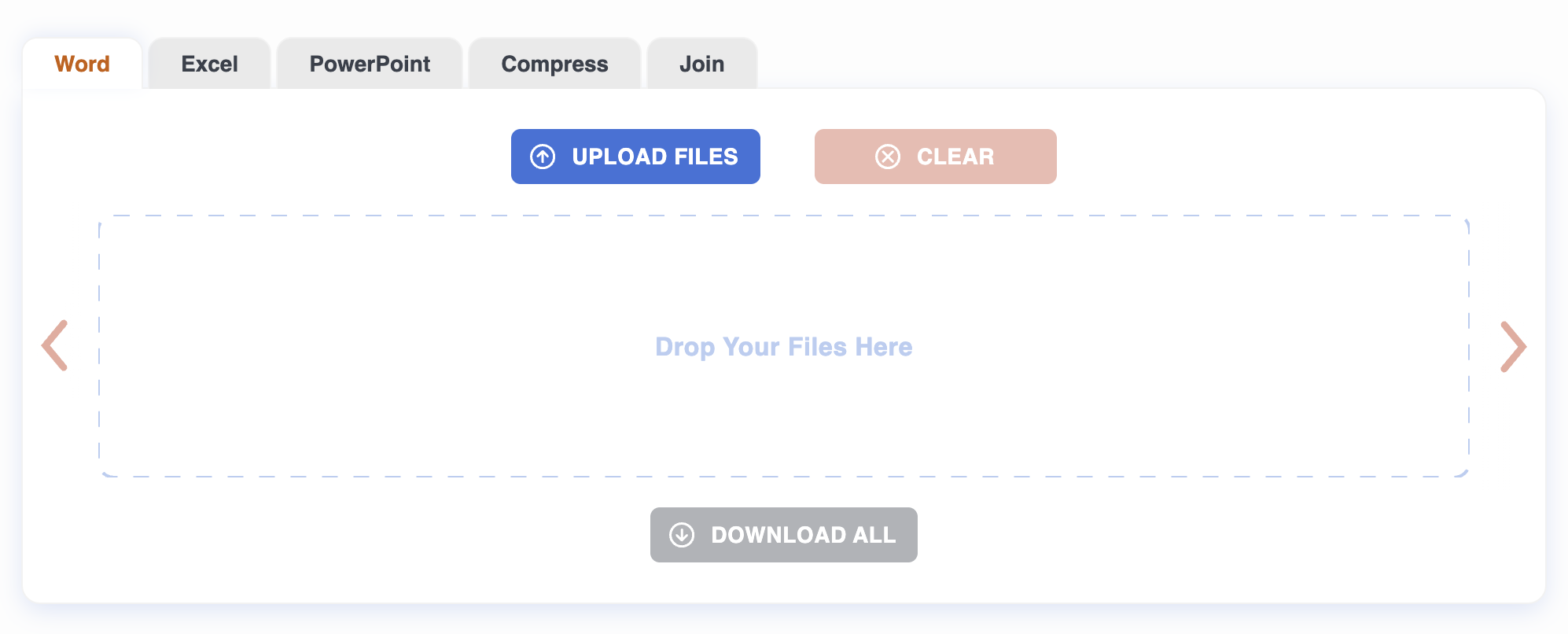
Drag a PDF onto the page, or click to pick one. Up to 20 files at once, 50 MB each. Conversion starts automatically.
Step 2: Wait
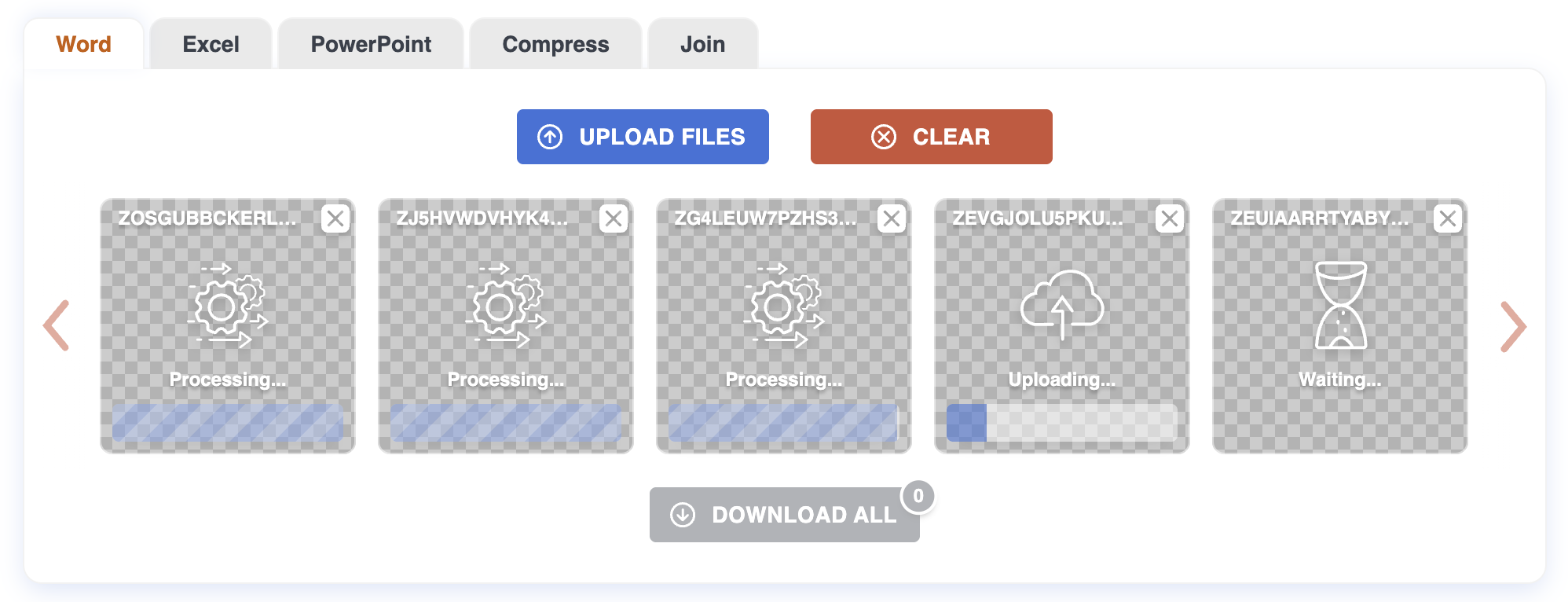
The converter scans every page for tabular structure — column rules, consistent whitespace, repeating row patterns — and rebuilds each table as a worksheet. By default each PDF page becomes one sheet. Tables that span multiple pages with the same header are stitched into a single continuous sheet.
Files are processed in parallel.
Step 3: Download
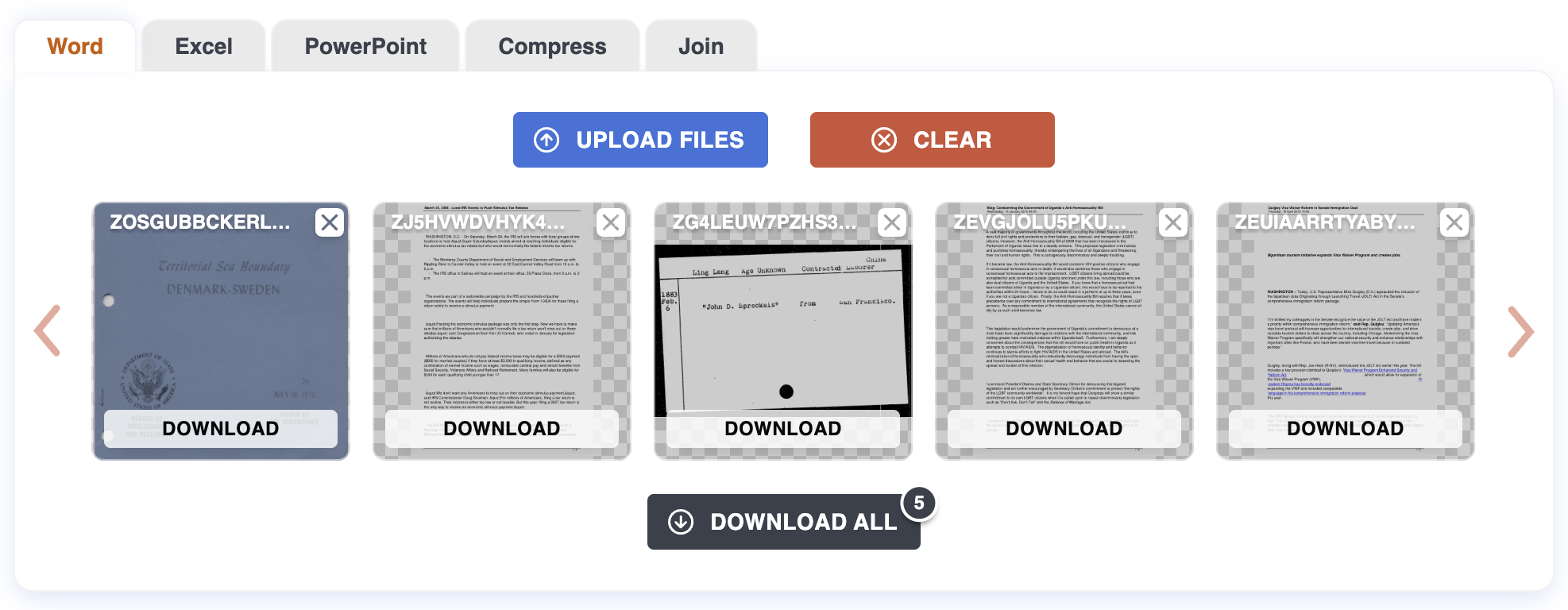
Each finished file gets a Download button. For a batch, use "Download all" to grab everything as a ZIP. The .xlsx opens in Excel, Google Sheets, Numbers, or LibreOffice Calc.
Tips
- Selectable text vs. scans. If you can select individual numbers in a PDF viewer, the conversion will be clean. If selecting only highlights pages as images, the PDF is a scan and contains no text to extract.
- Clear column structure helps. Visible borders or consistent column spacing produce the cleanest results. With faint or inconsistent rules, the converter falls back to whitespace heuristics; you may need to nudge a column boundary in Excel.
- Multi-page tables get joined automatically when the header repeats on every page.
- Numbers come through as numbers. Currency symbols and locale-specific separators may need to be re-applied via Excel's number format.
What can be tricky
Rotated tables. Landscape pages embedded in a portrait document sometimes confuse detection. Rotate the page in your viewer first, or transpose the result in Excel.
Merged header cells. A header like "Q1 2025" spanning Jan/Feb/Mar comes through as a merged cell, which makes sorting awkward. Unmerge in Excel and fill the value down if you need to filter.
Pages that aren't tables. Cover pages, paragraphs of legal text, and chart images come through as sheets with loose text. Delete them if you only want the data.
What won't work
Scanned PDFs without OCR. No extractable text means empty sheets. Run OCR first.
Password-protected files. Remove the password first.
Privacy
Files are uploaded over HTTPS and processed on our server. Both the original PDF and the resulting .xlsx are deleted automatically after one hour. No account required.
For more on how PDF-to-Excel conversion works, see the Blog.